BeEF is an exploitation framework for web application testing.
BeEF exploits browser vulnerabilities and interacts with one or more web browsers to launch directed command modules. Each browser can be configured in a different security context. BeEF allows you to launch a set of unique attack vectors and select specific modules in real time to target each browser and context.
- XSS vulnerabilities leverage input validation weaknesses on a web application. These vulnerabilities are often used to redirect users to malicious websites to steal cookies (session tokens) and other sensitive information. BeEF is a tool that can be used to manipulate users by leveraging XSS vulnerabilities.
- You can download BeEF from https://beefproject.com ↗ or https://github.com/beefproject/beef ↗.
- BeEF contains numerous command modules and uses a robust API that allows security professionals to quickly develop custom modules.
- BeEF is an application that runs in your browser. It allows you to take control of target browsers that visit a malicious web page that you have created. From there, a large number of exploits can be executed that affect the target browser.
In combination with social engineering attacks such as phishing emails, BeEF is an effective tool for information gathering, distributing malware, and many other browser-based exploits. We use it to gain access to an organization’s internal network and it is really useful for illustrating the extent to which social engineering can result in very big problems!
Launching BeEF#
The tool starts a web service on port 3000 by default. From there, the attacker can log in to a web console and manipulate users who are victims of XSS attacks.
BeEF Screenshot
Stealing a Browser Cookie#
shows a successful compromise in which the attacker has stolen the user’s session token (browser cookie) dsing XSS and BeEF
Sending a Fake Notification#
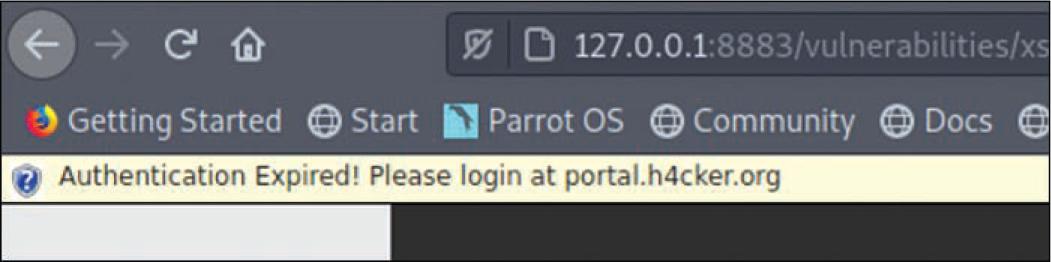
Once the system is compromised, the attacker can use BeEF to perform numerous attacks (including social engineering attacks). For example, the attacker can send fake notifications to the victim’s browser
Fake Notification in Browser#
The Fake BeEF Notification in the Victim’s Browser
The Browser Exploitation Framework (BeEF) enables penetration testers to perform client-side attacks using the target’s web browser. Pentesters use BeEF to “hook” web browsers. The attacker somehow makes a user execute a JavaScript file name hook.js to take control of the user’s browser and launch further attacks against the target system from within the browser context. The malicious script can be run in various ways, including using a phishing message to make a user go to a webpage that carries the script.
- Load the BeEF GUI Environment
- Hook the Local Browser to Simulate a Client-Side Attack
- Investigate BeEF Exploit Capabilities
Background / Scenario#
In this activity, you will use BeEF to hook a local browser and perform a browser-based exploit. This activity is performed under carefully controlled conditions within a virtual environment. BeEF tools should only be used for penetration testing in situations where you have written permission to perform client-side exploits.
Required Resources#
- Kali VM customized for Ethical Hacker course
Part 1: Load the BeEF GUI Environment#
Step 1: Start BeEF.#
- Open the BeEF application from the Kali Application > All Applications > beef start menu choice. The first time BeEF is run, you will be prompted to change the password for the BeEF user. Enter newbeef as the password.
$ sudo beef-xss
[sudo] password for kali:
[-] You are using the Default credentials
[-] (Password must be different from “beef”)
[-] Please type a new password for the beef user: newbeef
At the end of the command output, BeEF indicates that is opening the BeEF web UI in a new browser window.
[*] Opening Web UI (http://127.0.0.1:3000/ui/panel ↗) in: 5… 4… 3… 2… 1…
- A browser window will open automatically. This is the BeEF interface. If it does not, open Firefox from the menu bar and enter http://127.0.0.1:3000/ui/authentication ↗ as the URL. Log in to BeEF with the username beef and the password newbeef.
Step 2: Hook the Local Browser to Simulate a Client-Side Attack.#
To use BeEF to exploit a target system, you first have to “hook” the target browser. You will use the local system as the target in this lab. If you were running an actual penetration test, your reconnaissance would identify web pages that the user may visit often, as in a watering hole attack. You would use one of the commonly visited web pages to deliver the “beef hook” JavaScript code. In this lab, you will use a demo web page that is included with the BeEF application.
- Open a new tab in your Firefox browser. Enter the URL http://127.0.0.1:3000/demos/butcher/index.html ↗.
The fake web page resembles a simple storefront app. It contains JavaScript code which will run in the browser environment when the page is loaded.
- Use CTRL-U in Firefox to view the source code for the HTML page that is displayed.
Which lines in the HTML source will load and run the code to create the “beef hook”?
Answer Area
Lines 31 through 34
Hide Answer
- Return to the browser window that contains the BeEF Control Panel. Notice that the information in the Hooked Browsers panel on the left side of the screen has changed.
- Click the entry listed under Online Browsers.
What are the six tabs that appear under the Current Browser choice?
Answer Area
Details, Logs, Commands, Proxy, XssRays, Network.
Hide Answer
Open the Details tab. What information does BeEF know about the target user’s computer and browser? Why is this information interesting?
Answer Area
The browser type, version, operating system, and installed plugins. This is interesting because additional vulnerabilities may be associated with these items.
Hide Answer
Part 2: Investigate BeEF Exploit Capabilities#
Step 1: Investigate the Commands and Network Tabs.#
In this step, you will investigate two of the tabs that appear for the hooked internal browser. Use the internet to research the capabilities of the other tabs.
- Click the Commands tab. This tab is where modules can be executed against the target browser. Expand the command categories in the Module Tree pane. Notice the color-coded icons next to each function. These icons are referred to as “traffic lights”.
Each command module has a traffic light icon, which is used to indicate the following:
Green The command module works against the target and should be invisible to the user.
Orange The command module works against the target but may be visible to the user.
White The command module is yet to be verified against this target.
Red The command module does not work against this target.
Under which command category do you find the module to Detect Antivirus? Which traffic light icon does the Detect Antivirus module have?
Answer Area
Host category. Green icon.
Hide Answer
Note: The Module Tree search box acts as a filter. If you use the search box to find a command, you must clear your search terms from the box to see the entire tree again.
- Click the Network tab. The BeEF console creates a network map displaying the current network topology. The other tabs in this category are Hosts and Services. Because you are working in a local environment only, the network map will only show one network and one host.
Step 2: Use BeEF to Initiate a Social Engineering Attack.#
In this step, you will send a fake alert message to the hooked browser window to entice the user to download and install a malicious plug-in.
- Click the Commands tab in the BeEF Control Panel. Scroll down to the Social Engineering category. Open the category. Select the Fake Notification Bar (Firefox) choice from the module list. The default URL for the malicious plug-in is listed along with the message that will be shown on the browser window. The exploit will cause an alert to display on the browser. If the user clicks the install button for the fake plug-in, they will be directed to the URL listed.
What is the default message that the alert displays?
Answer Area
“An additional plug-in is required to display some elements on this page.”
Hide Answer
Have you ever seen fake notifications like this when you are browsing the web?
Answer Area
Fake tech support or virus detection notifications are commonly used by malicious or hacked websites.
Hide Answer
- Change Plugin URL to http://10.6.6.13/ ↗. This URL redirects the user to the login screen for the DVWA virtual server. The URL can point to any webpage, either locally stored or on the network. In a live penetration testing environment, this would be a cloned website, a malicious application download, or a webpage containing a malicious script.
- Change the alert text to say AdBlocker Security Extension is out of date. Install the new version now. Click Execute to send the alert to the hooked browser window.
- Return to the browser tab that displays The Butcher fake web page. An alert message is on the Firefox banner area. Click the Install Plug-in button on the alert banner.
What happens when you click the Install Plug-in button?
Answer Area
You are redirected to the DVWA login screen.
Hide Answer
What is the significance of this?
Answer Area
The browser is hijacked and forced to go to what could be a malicious website that will download malware to the target computer.
Hide Answer
- Close the Firefox browser.
Step 3: Use TabNabbing to Display Malicious Website#
TabNabbing is a function that redirects the user to a different URL if a browser tab of a hooked browser is idle for a specified length of time.
- Open a new instance of Firefox. Navigate to the BeEF login screen using the URL http://127.0.0.1:3000/ui/authentication ↗. Log in with the username of beef and the password of newbeef.
- Open a new tab and navigate back to The Butcher web page at http://127.0.0.1:3000/demos/butcher/index.html ↗.
- Return to the BeEF Control Panel tab. Select the instance listed under the Online Browsers in the Hooked Browsers panel. Open the Commands tab.
- Expand the Social Engineering category. Scroll down and select TabNabbing.
What is the default wait time before the page in the browser changes to the one specified in the URL field?
Answer Area
15 minutes
Hide Answer
- Change the number of minutes to 1. Click the Execute button to start the exploit. Remain idle for at least one minute.
- Return to the tab that displayed The Butcher web page.
What page is displayed in the tab now?
Answer Area
The BeEF Basic Demo page.
Hide Answer
- In the box at the center of the BeEF Basic Demo screen, type “This is my secret”. Return to the BeEF Control Panel tab. With the entry under Online Browsers selected, select Logs from the menu bar.
BeEF logs activity performed in the hooked browser. The text collected in the Basic Demo screen is displayed in clear text. All activity, including mouse clicks and navigation are recorded in the logs.
Reflection#
In an earlier lab, you were introduced to the Social Engineer Toolkit (SET). How might the SET and BeEF be used in combination to perform a social engineering penetration test?
Answer Area
Answers will vary. SET enables easy website cloning and input capture, BeEF enables command and control of the target’s browser. They can be used together to create both server-side and client-side exploits.